
home > content management systems (CMS) > joomla!
Use Joomla to Make a Contact Form
The tutorial we have written below outlines the steps for adding an email form to your Joomla! website. The process is fairly quick and easy, especially when using a 3rd party email form service provider.
1. Build the HTML Form Code
Before working on the Joomla side, it is important to first generate some form HTML code for insertion. The easiest (and best) way to create this code is via a free form service called myContactForm.com. We have written a complete article for using myContactForm.com.
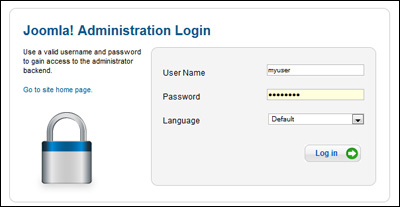
2. Login to your Joomla! Adminstration Panel
a. Go to your Joomla web site and login to the administration panel.
3. Configure Joomla! to Allow Form HTML in Articles
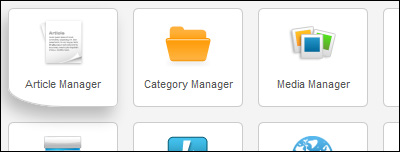
a. Click the Article Manager button
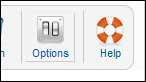
b. Click the Options button in the top right corner
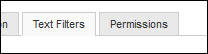
c. Click the Text Filters tab
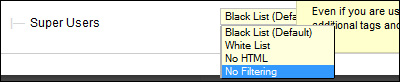
d. Scroll down to Super Users and under the Filtering Type selection box select No Filtering
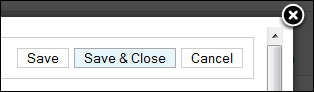
e. Select the Save and Close button
3. Create a new Article and Embed the Form HTML
Below we are outlining the steps for adding an email form to a new article. Note that you could use a very similar process to add an email form to an already existing article.
a. Click the New Article button

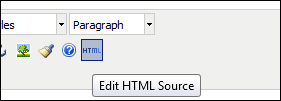
b. Click the Edit HTML Source button
c. Paste the form HTML into the HTML Source Editor window (CTRL+V or Right Click and Select Paste). If you do not have your form code created and copied, please read this tutorial to learn how to do so.
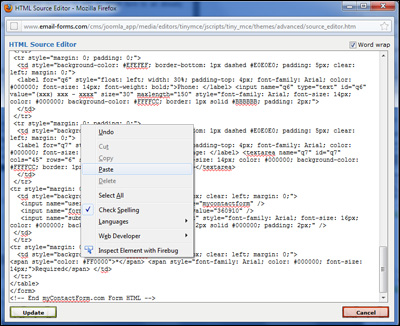
d. Click the Update button

e. Click the Save and Close button

4. Test the New Contact Form
Open a web browser and go to the web page containing your form. Fill out the form and press the submit button to test it.