
home > content management systems (CMS) > typo3
Place a Contact Form on Your Typo3 Web Site
Staying in touch with the visitors to your Typo3 website is easy by embedding a contact form into your website. We've outlined the steps for creating a contact form below.
1. Build Your Form Code
To get started, create the form code HTML using a free service like myContactForm.com. You can read how to do this here.
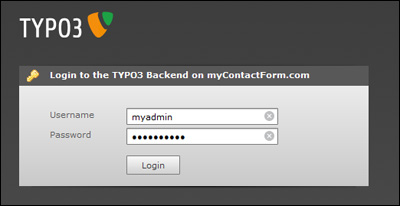
2. Login to the Typo3 Administration Area
a. Go to your Typo3 web site and login to the administration panel.
3. Create a New Page and Embed the Form HTML
Below we are outlining the steps for adding an email form to a new page. Note that you could use a very similar process to add an email form to an already existing item.
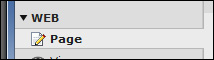
a. Click Page under the Web heading in the left control panel
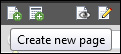
b. Click Create New Page Icon
c. Select what position you would like to insert the new page
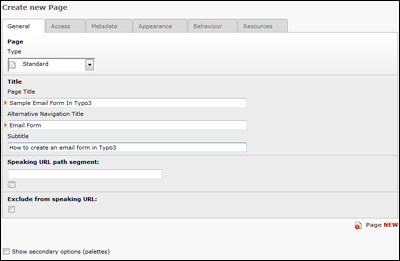
d. Fill in the information for your new page
e. Click the Save Document icon
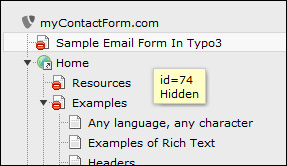
f. Open the page you just created by clicking it's name under the site branch diagram.
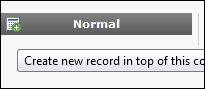
g. Click the New Content Element Icon
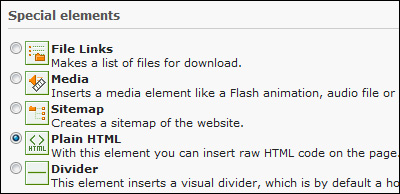
h. Under Special Elements select Plain HTML
i. Paste the form HTML into the HTML Code box (CTRL+V or Right Click and Select Paste).
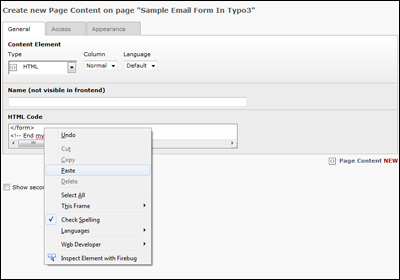
j. Click the Save Document icon
4. Send a Test Submission Through
Open a web browser and go to the web page containing your form. Fill out the form and press the submit button to test it.