
home > html editors > seamonkey composer
Using SeaMonkey Composer to Build Contact Forms
Using SeaMonkey Composer to add an email form to your website is outlined within the tutorial below. Please note that this tutorial was created using SeaMonkey Composer 1.1.15. The procedure may vary slightly if you are using a different version of the software. Please also note that SeaMonkey Composer is essentially the same software as Mozilla Composer. The process for adding forms to both is essentially identical.
1. Design Your Form and Generate Code
The easiest way to design your form is using software such as myContactForm.com, which allows you to generate custom HTML form code. For step-by-step instruction to do this, read this tutorial.
2. Open SeaMonkey
Start SeaMonkey as you would normally do.
3. Create or Open the Page Where You Want the Form
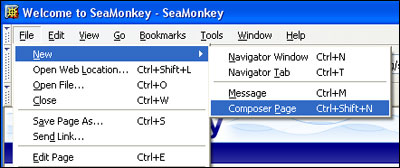
a. To create a new page, go to File > New > Composer Page (or press CTRL+SHIFT+N).
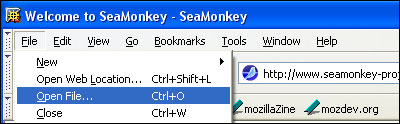
b. To open the page where you want the form, go to File > Open File (or press CTRL+O).
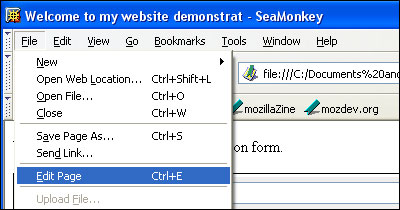
c. Then select File > Edit Page (or press CTRL+E).
4. Add the Form HTML to Your File
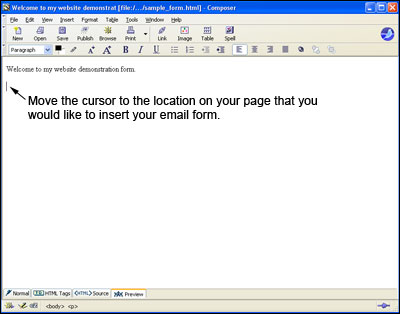
a. In the  view use your mouse and move your cursor to the spot on the page where you would like the form.
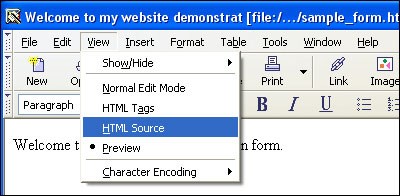
b. Click the  button to enter the HTML Source View. You can also access this by clicking View > HTML Source.
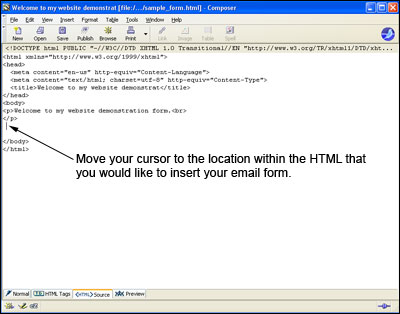
c. Move the cursor to the location within the HTML that you would like to locate the form.
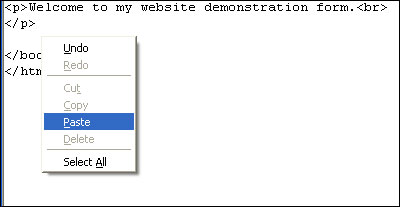
d. Paste the form HTML into the code (Edit > Paste, or CTRL+V, or Right Click and Select Paste).
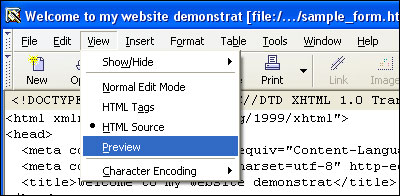
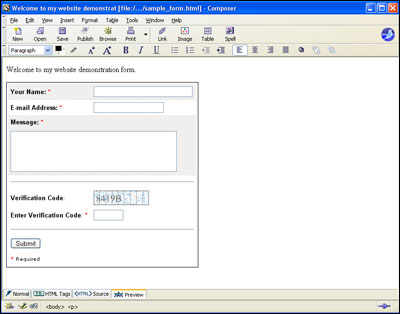
e. Click the button and make sure the form looks correct. You can also access this by clicking View > Preview.
5. Save the Contact Form
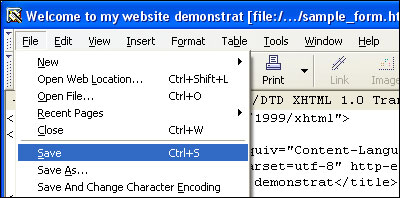
a. Select File > Save (or CTRL+S).
6. Upload Your Form to Your Web Host
Upload the file containing your form to your web server. This procedure will vary depending on which external FTP client you are using.
7. Test the Online Form
Finally it is time to test that the form is fully functional. Open a new browser window and go to the web page containing your form. Enter all of the form fields and press the submit button to send a test submission through. Check your email to ensure that all of the data was properly sent.
A test form created using SeaMonkey Composer can be viewed here.