
home > blogs > vox
Insert a Contact Form into Your VOX Blog
VOX is a powerful publishing platform and is very easy to add email forms to. VOX allows you to add an email form to either an individual blog post or to the side bar featured on every page of your blog. Both of these options are outlined below.
Please visit our VOX blog to see a form in action.
Adding an Email Form to a VOX Blog Post
1. Design and Build the Form
The first step before stating in VOX is to generate the HTML code that will be used for the actual form. myContactForm.com offers a free form creation service that is easy to use, quick, and intuitive.
To get started with myContactForm.com, please read this tutorial.
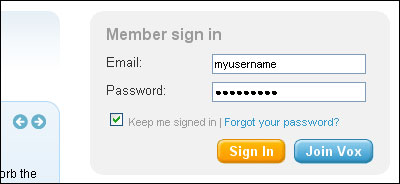
2. Login to your VOX Account
a. Go to VOX.com and login to your account.
3. Create a New Post
a. Click the Create button to start a new post.

4. Write the New Post
a. Write your new post as you would regulary do in VOX.
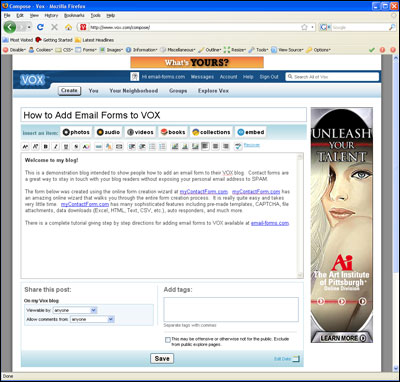
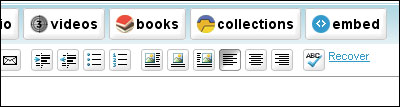
b. Once you get to the point in your post where you would like your email form, click the embed button.
c. A new Embed a Widget window will open. In the Widget Code box paste your form HTML (Edit > Paste, or CTRL+V, or Right Click and Select Paste).
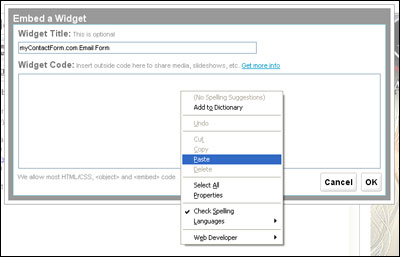
c. Once you have pasted your code, you will need to make a few changes manually in order to ensure that VOX formats it correctly.
1. Get rid of any new lines (hard returns) that are within the HTML code. When VOX goes to publish the post, it will interpret these as new lines and replace them with line breaks <br>, adding excessive white space to your form.
2. Make sure the elements of your form work with the template layout for your blog. I've found that making the form too wide or individual question fields too wide will often break the form. You may need to experiment with your form in order to ensure it works with the layout.
d. Click  on the Embed a Widget window.
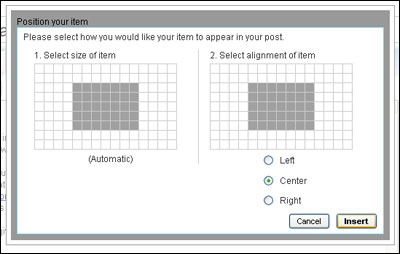
e. Select how you would like the email form positioned and click Insert
5. Publish the Blog Post
Once your form code has been embedded as a widget, Click  .
.
A fully functioning demonstration form hosted on VOX can be seen here.
Adding an Email Form to the Side Bar in VOX
1. Create the Form HTML Code
It is important before stating this tutorial to generate the HTML code that will be used for the email form. myContactForm.com offers a fully customizable form software that works brilliantly.
We've writtend a comprehensive myContactForm.com tutorial that we recommmend reading.
2. Login to your VOX Account
a. Go to VOX.com and login to your account.
3. Add Email Form to Sidebar
a. Click You Button.

b. Click Change Your Design
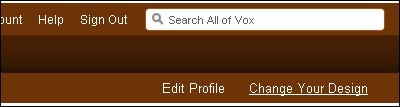
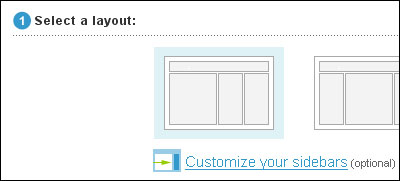
c. Click the Customize your sidebars under Select a layout
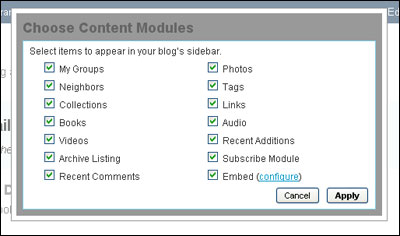
d. A new window will open. Click configure next to the Embed option.
e. A new Embed a Widget window will open. In the Widget Code box paste your form HTML (Edit > Paste, or CTRL+V, or Right Click and Select Paste).
f. Once you have pasted your code, you will need to make a few changes manually in order to ensure that VOX formats it correctly.
1. Get rid of any new lines (hard returns) that are within the HTML code. When VOX goes to publish the post, it will interpret these as new lines and replace them with line breaks <br>, adding excessive white space to your form.
2. Make sure the elements of your form work with the template layout for your blog. I've found that making the form too wide or individual question fields too wide will often break the form. You may need to experiment with your form in order to ensure it works with the layout. Generally a 95% wide form works well.
g. Click on the Embed a Widget window.
h. On the Choose Content Modules window make sure Embed is checked and then click Apply.

e. Your new Email Form will now appear in your blog's right column.
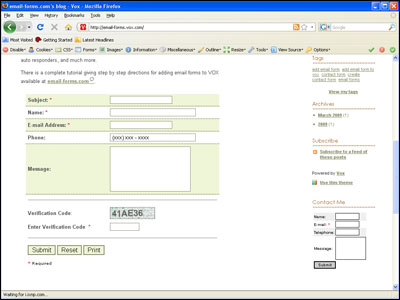
A fully operational demonstration form hosted on VOX can be seen here.