
home > content management systems (CMS) > concrete5
Using Concrete5 CMS to Create Email Forms
Concrete5 is a powerful content management system that is quite easy to add email forms to. The steps for doing this are outlined within the body of the tutorial below.
You can view a Concrete5 web site using a email form here.
1. Generate the Form HTML Code
Before adding a form to your site, you must first create the form code that will display the form. The easiest way to do this is using a free form service such as myContactForm.com which will allow you to create easy, clean, and customizable web forms. You can read our full step-by-step myContactForm.com tutorial here.
2. Login to the Concrete5 Administration Area
a. Go to your Concrete5 web site and login to the administration panel.
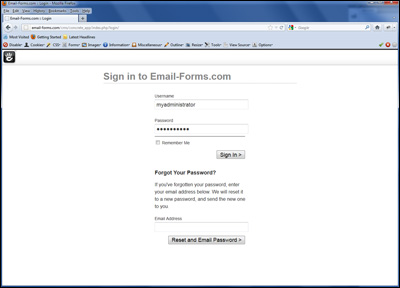
3. Create a New Item and Embed the Form HTML
Below we are outlining the steps for adding an email form to a new page on your Concrete5 web site. Note that you could use a very similar process to add an email form to an already existing page.
a. Click the Add Page Icon

b. Select the Page Type and enter other details to create the page
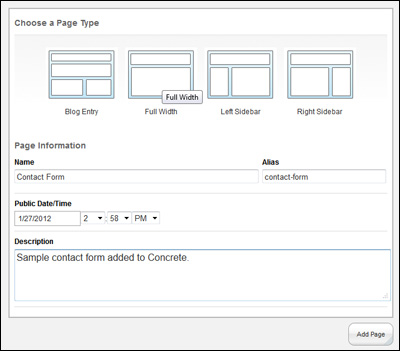
c. Click the Add Page button

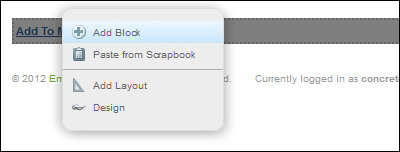
d. Click the page block where you would like to insert the form and select Add Block
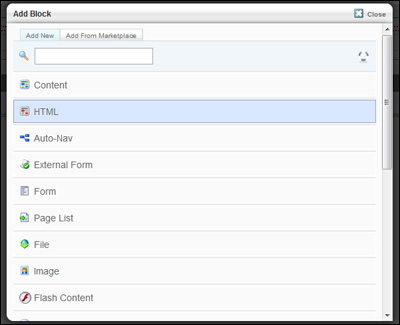
e. Select HTML on the Add Block screen
f. Paste the form HTML into the Add your HTML below: text area (CTRL+V or Right Click and Select Paste).
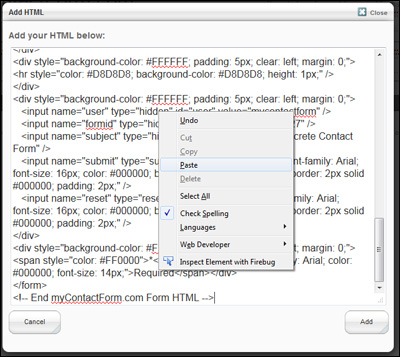
g. Click the Add button

h. Click the Exit Edit Mode button

i. Click the Publish My Edits button that appears

NOTE: To add a form to an existing page the process is similar to the above:
1. Login to your Administration Panel
2. Navigate to the page where you would like to insert the form
3. Click the Edit Page icon

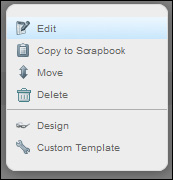
4. Click the block you would like to add the form to and select Edit
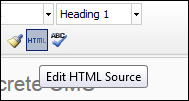
5. Click the Edit HTML Source button
6. Paste the form HTML into the HTMLSource Editor text area (CTRL+V or Right Click and Select Paste).
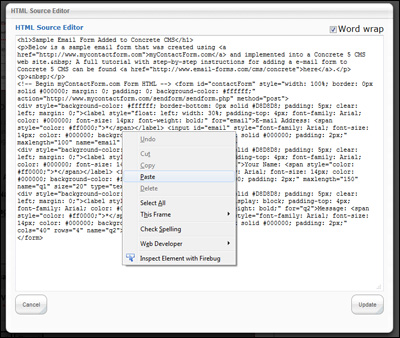
7. Click the Update button

8. Click the Update button in the Edit Content window
9. Click the Exit Edit Mode button
4. Test Your Form
Once complete, it is important to test your form. Using your favorite web browser, go to the web page containing your form. Fill out the form and press the submit button to test it. Make sure to check your email to ensure that the form submission was a success.
A sample form created using a Concrete5 web site can be seen here.