
home > content management systems (CMS) > drupal
Easily Add a Contact Form to Drupal
The intent of this article is to provide step-by-step instructions for adding a contact form to your Drupal web site. An example form created using a Drupal web site can be seen here.
1. Make Your Email Form HTML
Before opening up your Drupal site, it is important to first design your contact form and generated its HTML code. The best way to do this is using a free email form service such as myContactForm.com. We've written a complete myContactForm.com tutorial here.
2. Login to the Drupal Administration Interface
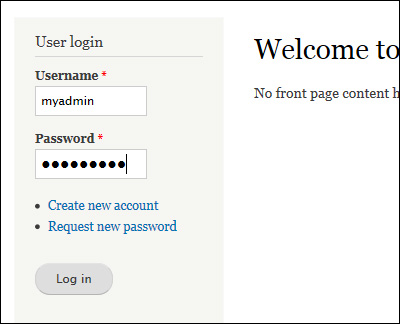
a. Go to your Drupal web site and login to the administration panel.
3. Add the Form Code to Your Content Page
a. You can add your email form to either an existing content page on your site or you can create a new content page for the email form.
To Create a New Content Page, click the Add Content Button

To Edit and Existing Content Page:
1. Navigate to the page that you would like to edit and add the email form to.
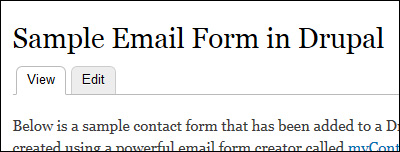
2. Click the Edit Tab
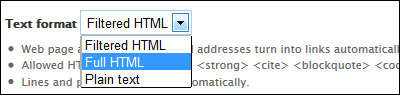
b. In the new window that opens which allows you to add/edit the content of your page, scroll down to the selection box that says Text Format and select Full HTML.
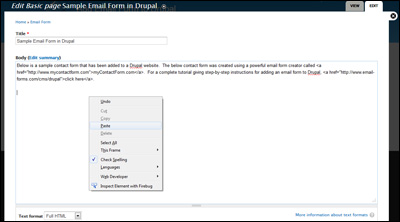
c. Paste the form HTML into the Body box (CTRL+V or Right Click and Select Paste). If you do not have your form code created and copied, please read this tutorial to learn how to do so.
d. Click the Save button

4. Test Your Newly Created Form
Open a web browser and go to the web page containing your form. Fill out the form and press the submit button to test it.
A sample form created using a Drupal web site can be seen here.