
home > content management systems (CMS) > wix
Create a Contact Form for Your Google Site
Google Sites is a great way to create an easy to use web site. The tutorial on this page providesinstructions on adding an email form to your Google Site. You can review a form we've added to a Google Site, here.
1. Start Building Your Form's HTML Code
Before getting started, it is important that you have a piece of high quality form HTML code ready to embed in your Google Site. The easiest way to create this is using a free form creation service such as myContactForm.com. There is a full tutorial for creating form code using myContactForm, here.
2. Go to Google Sites and Login to Your Account
a. Go to sites.google.com and enter your login information
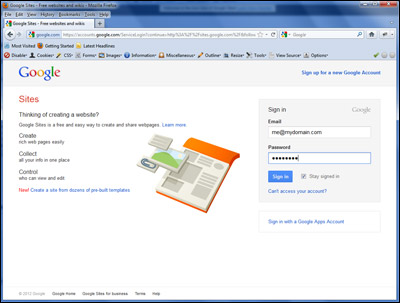
3. Add the Form Code to Your Google Site
a. Click the link that allows you to edit your existing Google Site
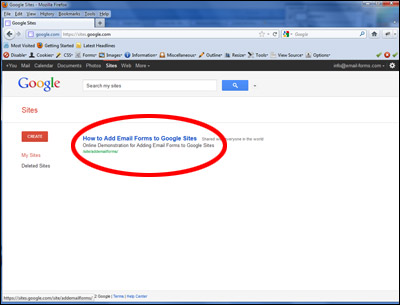
b. Either click the name of an existing page to add a form to it or click the new page button.
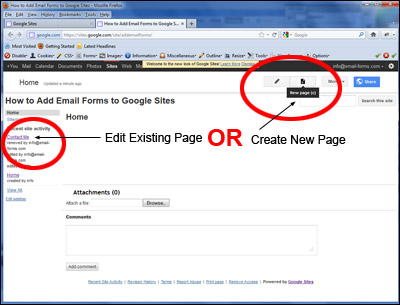
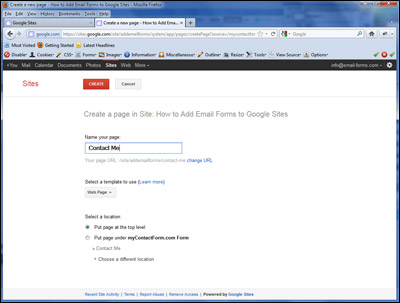
c. If you are creating a new page for the form, give that page a name and then click the Create button. If you are editing an existing page, you'll need to press the Edit button to add the form HTML to it.
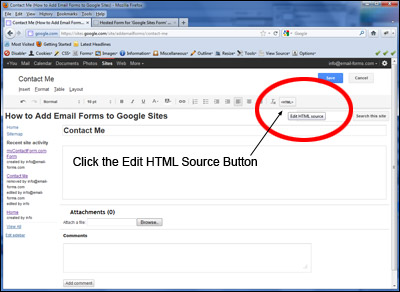
d. Click the Edit HTML Source button
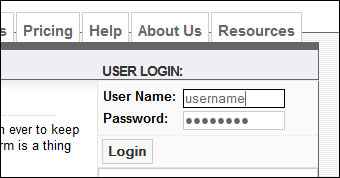
e. Open a new browsing window and navigate to myContactForm.com and login.
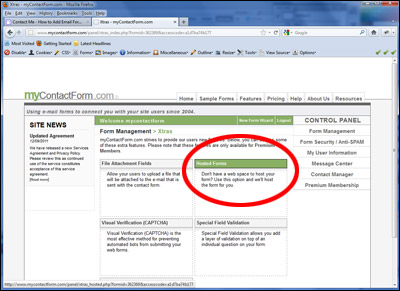
f. Click the Xtras Button next to your form

g. Click the Hosted Forms button
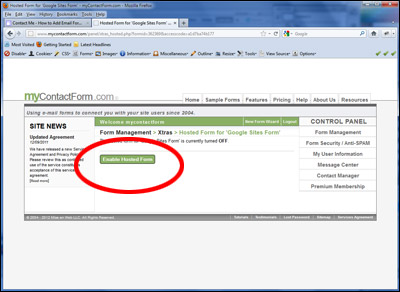
h. Click the Enable Hosted Form button
i. Select and Copy (CTRL+C or Right Click and Select Copy) the URL of the hosted form that is provided.
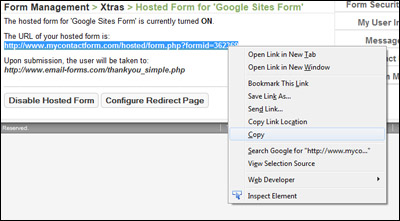
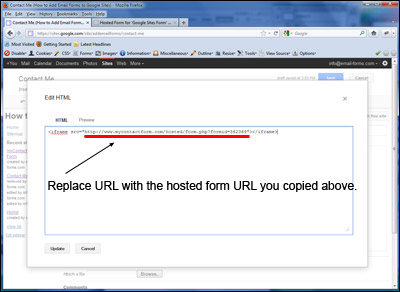
j. Go back to the open Google Sites browser window. Enter into the HTML window the following code:
<iframe src="myhostedformurl"></iframe>
Replace "myhostedformurl" with the URL of the hosted form that you copied above.
k. Click the Update button
4. Test Your Contact Form
Our final step is to open a new web browser window, navigate to your site, and test the form. It is important to test that all of the form features are working properly (such as CAPTCHA, mandatory fields, etc.) and that the email is being sent to your inbox properly.
A demonstration form created using a Google Sites web site can be seen here.