
home > content management systems (CMS) > nucleus
Make a Contact Form for Nucleus CMS
Nucleus is a powerful content management system that is quite easy to add email forms to. The steps for doing this are outlined within the article below. We have created a demonstration form for a Nucleus web site here.
1. Build the Form's HTML Code
Before getting started in Nucleus, it is important to first design the form and output the HTML code. The easiest way to create the code is using a free form service such as myContactForm.com which allows for the creation of custom email forms. You can read a full tutorial for doing this, here.
2. Login to the Nucleus Administration Area
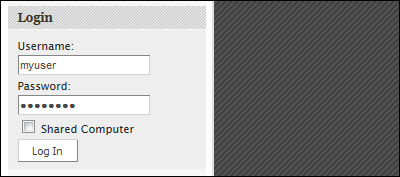
a. Go to your Nucleus web site and login to the administration panel.
3. Create a New Item and Embed the Form HTML
Below we are outlining the steps for adding an email form to a new item in your weblog. Note that you could use a very similar process to add an email form to an already existing item.
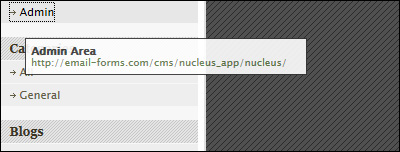
a. Navigate to the Admin Area
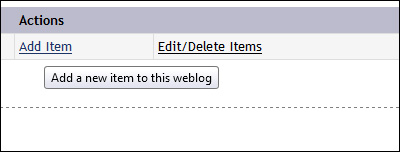
b. Click Add Item to create a new item to add your email form to
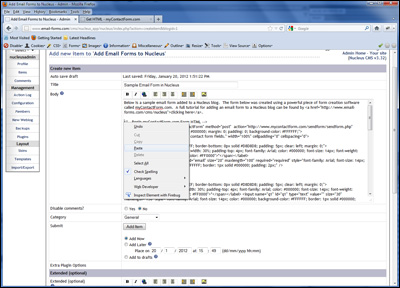
c. Paste the form HTML into the Body text area (CTRL+V or Right Click and Select Paste).
d. Click the Auto save now button
e. Click the Add Item button

4. Test Your Live Email Form
Open a web browser and surf to the web page containing your newly created contact form. Fill out the form details and press the submit button to send a test submission through. Check your email and verify that all of the form details have been correctly sent.
We've created a test form in Nucleus that can be seen here.