home > content management systems (CMS) > php nuke
Tutorial for Adding Contact Forms to PHP Nuke
Below we have written a tutorial for adding a contact form to PHP Nuke.
1. Design Your Form and Generate HTML
Before getting started, please first create your form HTML code. myContactForm.com is a free form tool for doing this, making the process quick and easy. You can read step by step instructions here.
2. Login to the PHP Nuke Administration Area
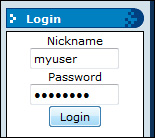
a. Go to your PHP Nuke web site and login to the administration panel.
3. Modify the config.php File to Allow for iframe
a. Open the config.php file in the root directory of your PHP Nuke installation.
b. Look for the line that looks like this:

c. Add iframe to the $AllowableHTML line as shown below:

d. Re-upload the config.php file to your server
4. Create a News Item and Embed the Form HTML
Below we are outlining the steps for adding an email form to a new news item. Note that you could use a very similar process to add an email form to an already existing item.
a. Click Submit News
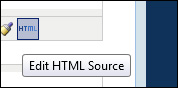
b. Click Edit HTML Source to insert your form code
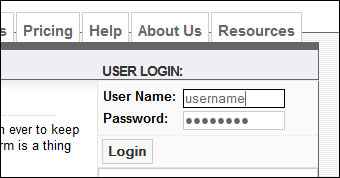
e. Open a new browsing window and navigate to myContactForm.com. Login to myContactForm.com
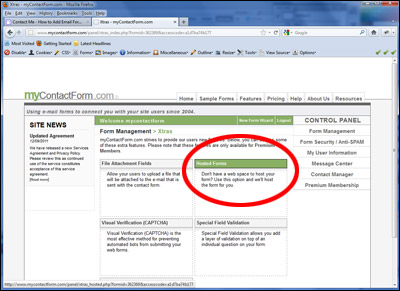
f. Click the Xtras Button next to your form

g. Click the Hosted Forms button
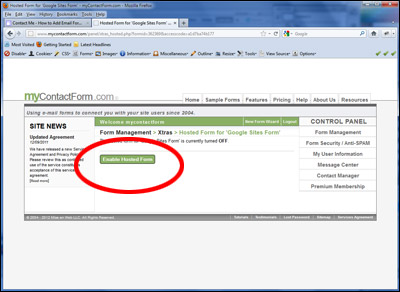
h. Click the Enable Hosted Form button
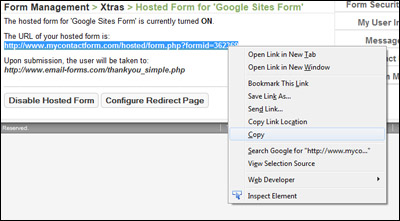
i. Select and Copy (CTRL+C or Right Click and Select Copy) the URL of the hosted form that is provided.
j. Go back to the open PHP Nuke browser window. Enter into the Edit HTML window the following code:
<iframe src="myhostedformurl"></iframe>
Replace "myhostedformurl" with the URL of the hosted form that you copied above.
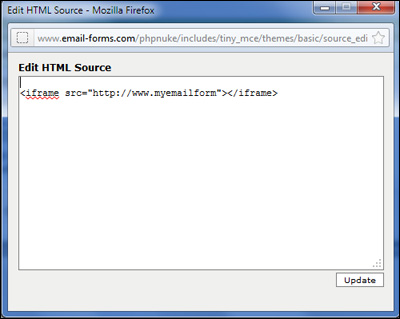
d. Click the Update button

4. Test Your Form
Now that the form is embedded in the site, it is important to send a test through. Open a web browser and go to the page hosting your form. Enter the form information and press the submit button to send a test through. Once submitted, check your email and verify that the form was submited successfully.