
home > html editors > coffeecup
Insert a HTML Contact Form Using CoffeeCup
Using CoffeeCup to add an email form to your website is very easy. The steps for doing so are outlined within this tutorial. Please note that this tutorial was created using CoffeeCup 2008. The procedure may vary slightly if you are using a different version.
1. Build Your Contact Form HTML
Before getting started in CoffeeCup, you should first generate the HTML form code that will be used to display the form on your site. The easiest way to do this is using an email form service called myContactForm.com which we've written a full tutorial for, here.
2. Open up the CoffeeCup Software
Start CoffeeCup as you would normally do.
3. Create or Open the Page Where You Want the Form
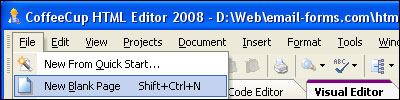
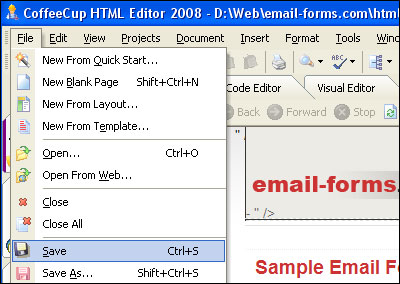
a. To create a new page, go to File > New Blank Page (or press SHIFT+CTRL+N).
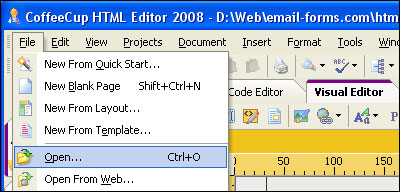
b. To open the page where you want the form, go to File > Open (or press CTRL+O).
4. Add the Form HTML to Your File
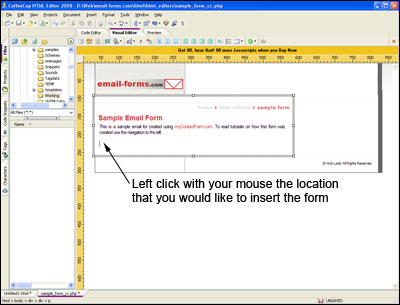
a. Using your mouse, move your cursor to the spot on the page where you would like the form.
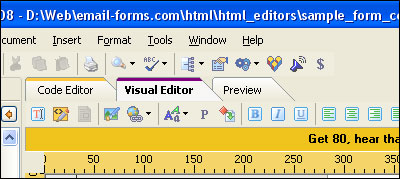
b. Click into the Code Editor for your website.
c. Move the cursor to the location within the HTML that you would like to locate the form.
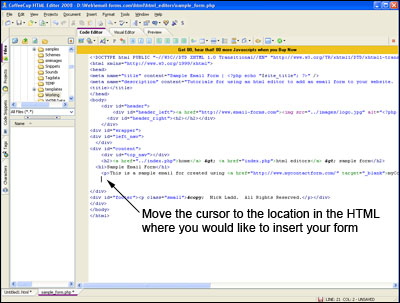
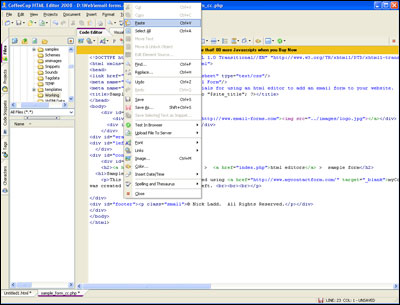
d. Paste the form HTML into the code (Edit > Paste, or CTRL+V, or Right Click and Select Paste).
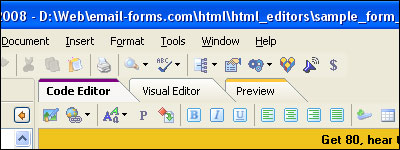
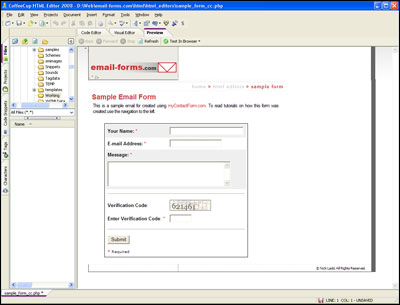
e. Click the Preview tab and make sure the form looks correct.
5. Save Your Newly Created Form
a. Select File > Save (or CTRL+S).
6. Upload The Form to Your Server Space
Upload the file containing your form to your web server. This procedure will vary depending on whether you are using an external FTP client or CoffeeCup's built-in client.
7. Send a Test Form Submission
Open a web browser and navigate to the web page containing your contact form. Fill out the form and press the submit button to test it. Be sure to check your email and ensure that the form submission was a success.
A demonstration form created using CoffeeCup can be seen here.