
home > html editors > microsoft publisher
Build Contact Forms with Microsoft Publisher
Microsoft Publisher is an authoring tool that is part of the Microsoft Office suite of software. Using Microsoft Publisher to add an email form to your website enables your site visitors to interact with directly with you without exposing your email address to SPAM. The steps for doing this are outlined below. Please note that this tutorial was created using Microsoft Publisher 2007. The procedure may vary slightly if you are using a different version.
1. Generate Form HTML Code
Get started by first generating your form HTML code at myContactForm.com, a free email form service. Our tutorial for using myContactForm.com can be read, here. A good piece of form creation software will allow you to create a completely custom form.
2. Open Publisher
Start Microsoft Publisher as you would normally would.
3. Create or Open the Page Where You Want the Form
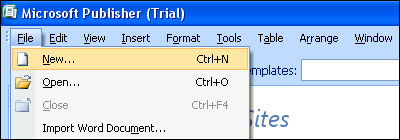
a. To create a new page, go to File > New (or press CTRL+N).
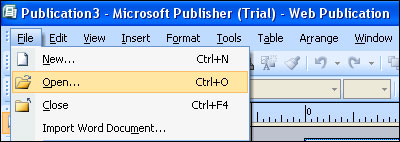
b. To open the page where you want the form, go to File > Open (or press CTRL+O).
4. Add the Form HTML to Your File
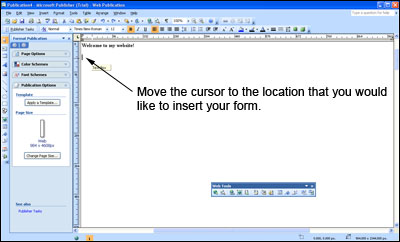
a. Using your mouse, move your cursor to the spot on the page where you would like the form.
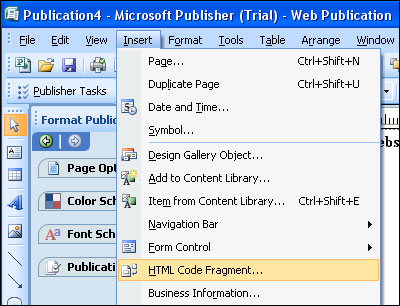
b. Click Insert > HTML Code Fragment
c. A new Edit Code Fragment window will open. Paste the form HTML into the code (Edit > Paste, or CTRL+V, or Right Click and Select Paste).
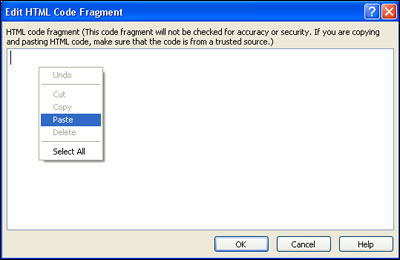
d. Click OK on the Edit HTML Code Fragment window.
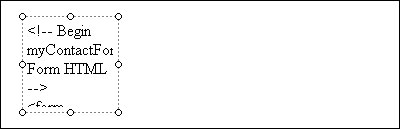
e. Using your mouse, left click and drag the form code fragment to the location on the page you would like to locate it.
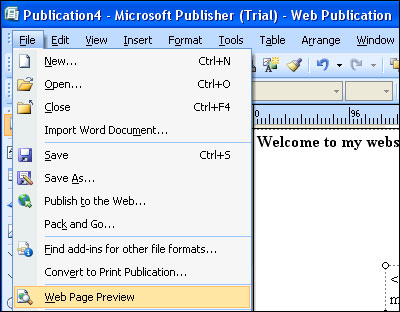
f. Click File > Web Page Preview
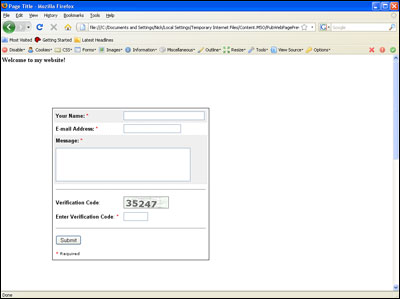
g. Verify that the form looks correct in the Web Page Preview
5. Save Your Email Form
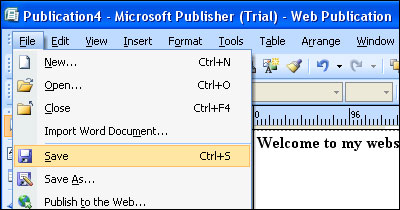
a. Select File > Save (or CTRL+S).
6. Upload Your Contact Form
Upload the file containing your form to your web server. This procedure will vary depending on whether you are using an external FTP client or Publisher's built-in client.
7. Send a Test Form Submission
Open a web browser and go to the web page containing your form. Fill out the form and press the submit button to test it. Check your email to ensure that you receive the test submission.
We've used Microsoft Publisher to create a sample / demonstration form which can be viewed here.