
home > social networks > myspace
Embed a Contact Form into Your MySpace Page
The following article provides step-by-step instructions for adding an email form to your MySpace profile. A sample MySpace page using an email form can be seen here.
1. Create the Email Form Code
Get started by going to myContactForm.com and generating free form HTML code for your page. You can read our comprehensive myContactForm.com tutorial here.
2. Open a Web Browser and go to MySpace.com
a. Login to your MySpace.com account
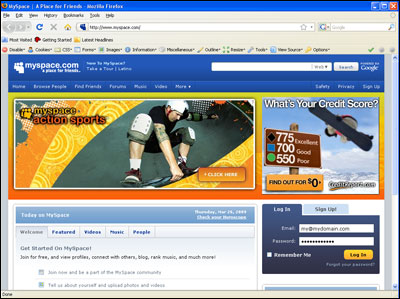
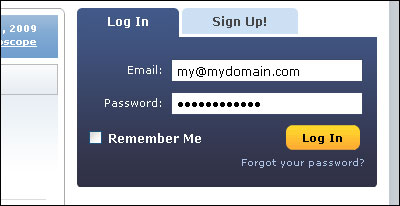
3. Edit Your Profile
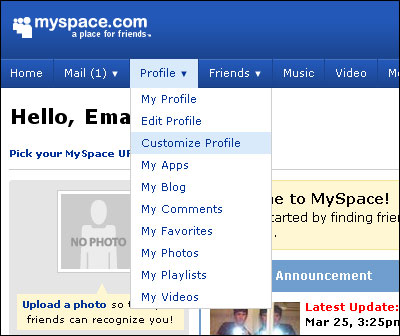
a. Go to the Profile dropdown and click Customize Profile
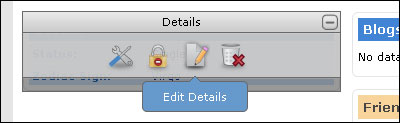
b. Hover your mouse over the Module that you would like to add the email form to. Click the Edit Details icon 
4. Insert the Email Form Code
a. Click through to the area where you would like to insert the email form. For our example, we've chosen the About Me: area. Email forms can be added to any part of your profile.
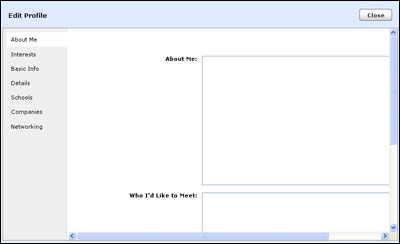
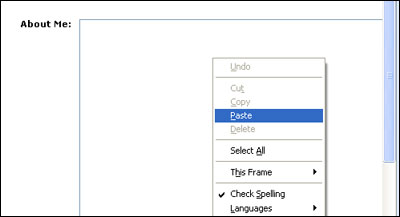
b. Click into the part of the profile that you would like to insert your email form. Paste the form HTML into the Window (Edit > Paste, or CTRL+V, or Right Click and Select Paste).
c. Click the  button
d. Click the Close button.
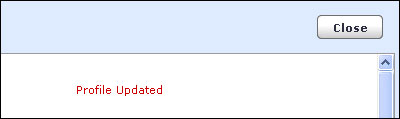
e. The edit window will close. Now click the Publish button.

6. Test Your New Contact Form
Open a web browser and go to your MySpace profile. Fill out the form and press the submit button to test it.
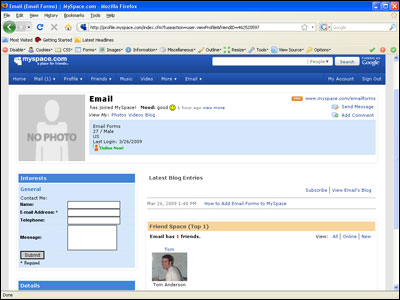
You can view our same form hosted on MySpace, here.