
home > web hosts > AWARDSPACE.COM
Add a Contact Form to Your AwardSpace.com Site
This tutorial covers adding a contact form to your web site hosted on awardspace.com. You have the option of adding the form with an external HTML editor and then uploading the file via FTP or you using AWARDSPACE.COM's built-in File Manager. The tutorial for adding an email form using their File Manager is outlined below.
A sample contact form hosted on AWARDSPACE.COM can be submitted here.
1. Generate Your Form HTML Code
The first step is to generate form HTML code using free email form software, such as myContactForm.com. We've writted a complete tutorial for getting started with myContactForm.com.
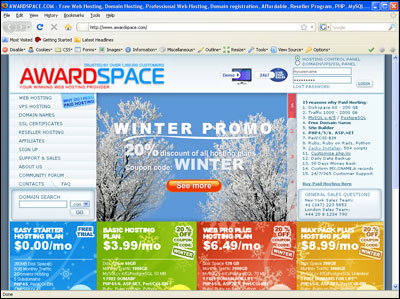
2. Open a Web Browser and go to AWARDSPACE.COM
a. Login to your AWARDSPACE.COM account.

3. Open up the File Manager
a. Click the Website Manager button.

b. Click the File Manager icon.

4. Create a New File or Open an Existing File
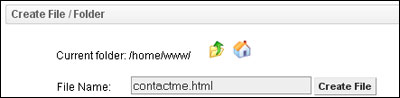
a. To create a new file, scroll down to Create File / Folder area. Type in your desired File Name and click Create File.
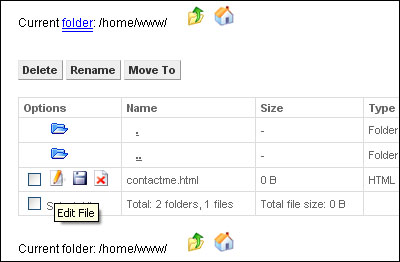
b. To open an existing file, click the Edit File icon  next to your file.
5. Add the Form HTML to Your File
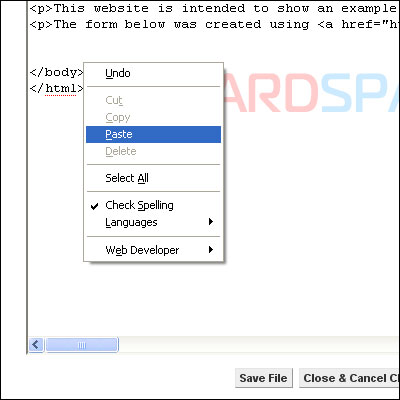
a. Move the cursor to the location within the HTML that you would like to insert your email form.
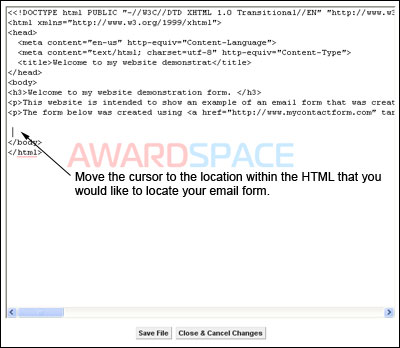
b. Paste the form HTML into the Window (Edit > Paste, or CTRL+V, or Right Click and Select Paste).
c. Click 
6. Test Your Contact Form
The final step is checking that the form is functioning properly. Open a new web browser and go to the web page containing your web form. Fill out the form fields and press the submit button. Check your email to ensure that the form was successfully submitted.
A demonstration form hosted on AWARDSPACE.COM can be tested here.