
home > web hosts > freehostia
Add a Form to Your Freehostia Hosted Web Site
It is easy to add an email form to a website that you're hosting on Freehostia. You have the option of adding the form with an external HTML editor and then uploading the file via FTP or using Freehostia's built-in File Manager. The tutorial for adding an email form using their File Manager is outlined below.
You can see here an example form hosted on Freehostia.
1. Design the Form and Create the Form HTML
To get started, create your email form HTML code using a free service like myContactForm.com. We have created a tutorial for using myContactForm, here.
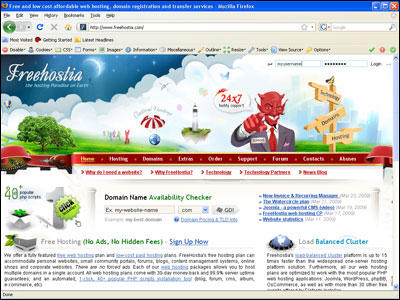
2. Open a Web Browser and go to Freehosita.com
a. Login to your Freehostia.com account.

3. Open up the File Manager
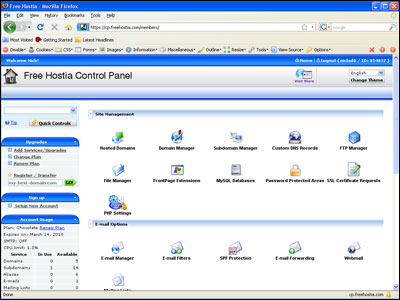
a. Click the File Manager icon under Site Management

4. Create a New File or Open an Existing File
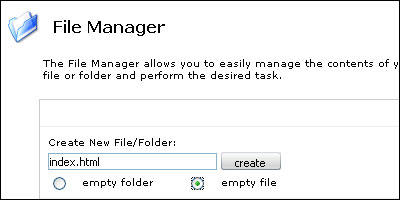
a. To create a new file, type in your desired File Name, click empty file, and then click the create button.
b. To open an existing file for editting click the Edit File icon  next to your file.

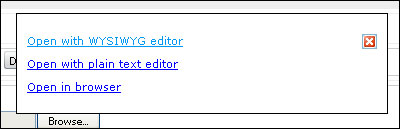
c. A small window will open. Click Open with WYSIWYG editor
d. Design and write what you would like to have on your page. Do not paste any form code into the WYSIWYG editor as it will not work.
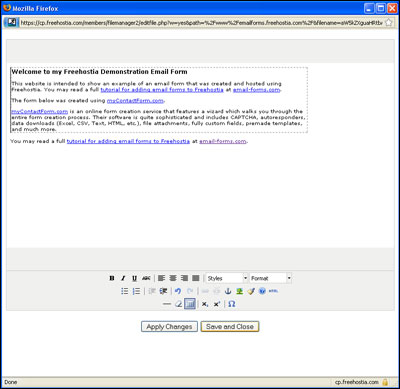
e. Click 
5. Add the Form HTML to Your File
a. To open an existing file for editting click the Edit File icon next to your file.
c. A small window will open. Click Open with plain text editor
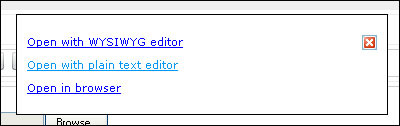
a. Move the cursor to the location within the HTML that you would like to insert your email form.
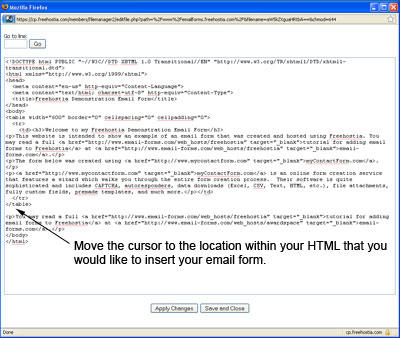
b. Paste the form HTML into the Window (Edit > Paste, or CTRL+V, or Right Click and Select Paste).
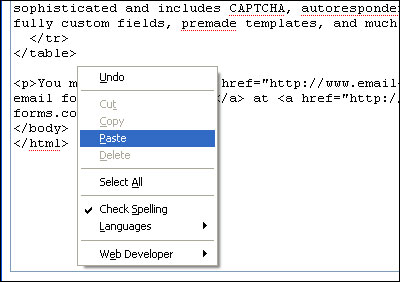
c. Click 
6. Open up the Form and Test
Open a web browser and go to the web page containing your form. Fill out the form and press the submit button to test it.
A demonstration form hosted on Freehostia can be seen here.