
home > web hosts > webs
Yahoo! Geocities Contact Form
Adding an email form to your Yahoo! Geocities website is a powerful way to stay in touch and exchange information with your site visitors. You have the option of adding the form with an external HTML editor and then uploading the file via FTP, using Yahoo!'s PageBuilder, or using Yahoo!'s HTML editor. I am not a fan of using Yahoo! PageBuilder because you cannot manually manipulate the HTML. Therefore I recommend using Yahoo!'s HTML editor,
A sample form hosted on Yahoo! Geocities can be seen here.
1. Create the Form Code to Be Embedded
Before working inside of the Geocities interface, it is important to first design and generate your form's HTML code using a free service like myContactForm.com. myContactForm.com takes all of the technical difficulty out of building customizable web forms. We've written a tutorial for doing this, here.
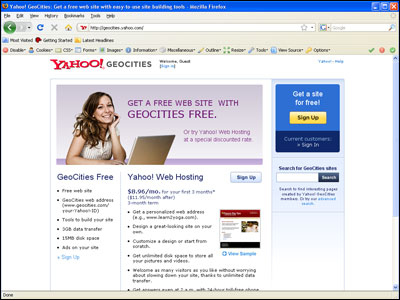
2. Open a Web Browser and Go to geocities.yahoo.com
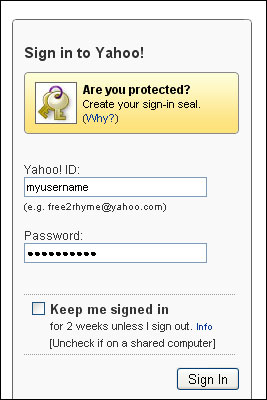
a. Login to your Yahoo! Geocities account.
3. Add the Form HTML to a New File
Note: If you would like to insert the form HTML into an existing file, skip ahead to Step 4.
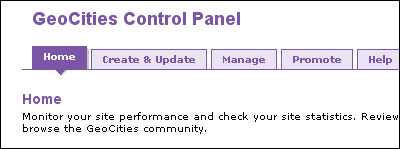
a. Click the Create & Update tab under the Geocities Control Panel
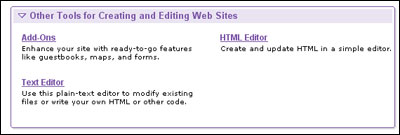
b. Click HTML Editor under Other Tools for Creating and Editing Web Sites
c. Move the cursor to the spot in the content box where you would like to insert your email form.
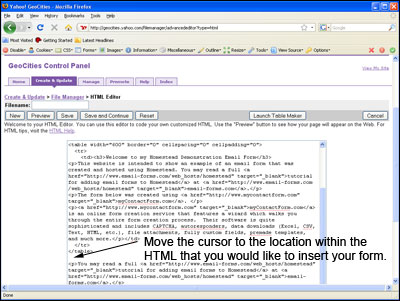
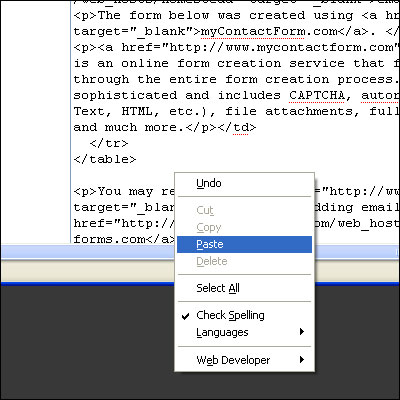
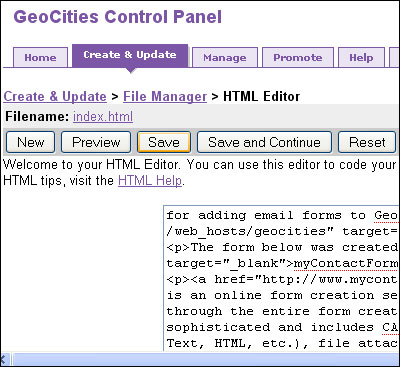
d. Paste the form HTML into the HTML Editor window (Edit > Paste, or CTRL+V, or Right Click and Select Paste).
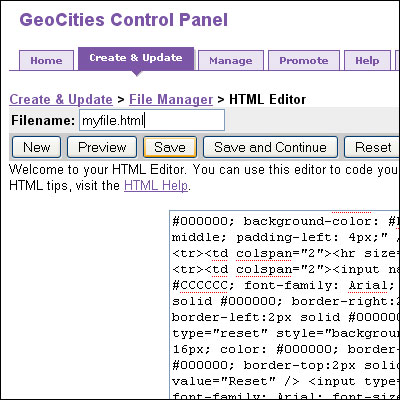
e. Type in your Filename: and click the Save button.
4. Add the Form HTML to an Existing File
Note: If you added your form HTML in Step 3, you may skip Step 4.
a. Click the Create & Update tab under the Geocities Control Panel
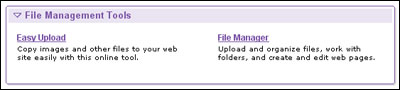
b. Click File Manager under File Management Tools
c. Move the cursor to the spot in the content box where you would like to insert your email form.
d. Paste the form HTML into the HTML Editor window (Edit > Paste, or CTRL+V, or Right Click and Select Paste).
e. Click the Save button.
5. Test the Completed Live Form
Our final step is sending a test submission through to ensure that everything is working properly. Open a web browser and go to the web page containing your form. Fill out the form and press the submit button to test it.
A demonstration form hosted on Yahoo! Geocities can be seen here.