
home > web hosts > webs
Add a Contact Form to a Webs.com (freewebs) Site
It is simple to add an email form to your website hosted on Webs.com (formerly freewebs). You have the option of adding the form with an external HTML editor and then uploading the file via FTP or using Web's built-in Site Builder. The tutorial for adding an email form using their Site Builder is outlined below.
Click here to see an example email form hosted on Webs.com.
1. Create Your Form HTML Code
Your first step is to design and generate the actual form's HTML code. This can be done easily using a free form provider such as myContactForm.com. We've created a simple tutorial outlining the steps for doing this.
2. Open a Web Browser and go to Webs.com
a. Login to your Webs.com account,


3. Open up the Site Builder
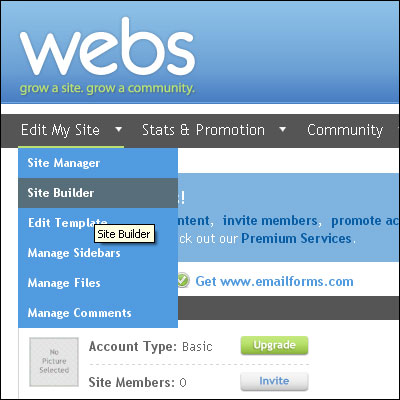
a. Under the Edit My Site dropdown, click Site Builder
4. Create a New File or Open an Existing File
a. To create a new page, click the New Page button.

b. Under the Add a New Page window, select the Page icon, type in a Page Name, and then click Done.
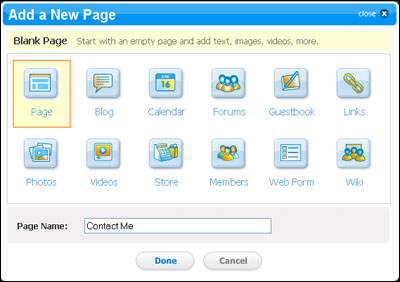
c. Select the page that you would like to add the contact form to using the dropdown box at the top of the Site Builder.

5. Add the Form HTML to Your File
a. Click the content box button.
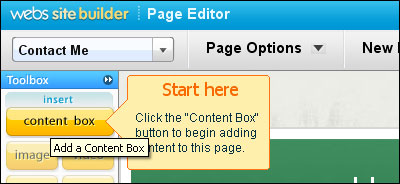
b. Move the cursor to the spot in the content box where you would like to insert your email form. Click the  button.
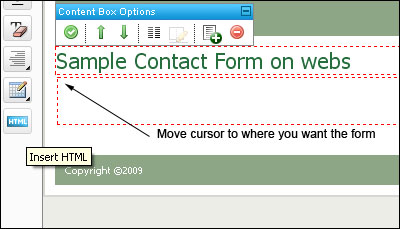
c. A new Custom HTML window will open.
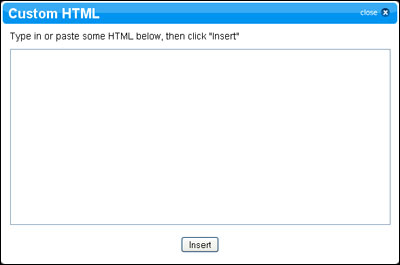
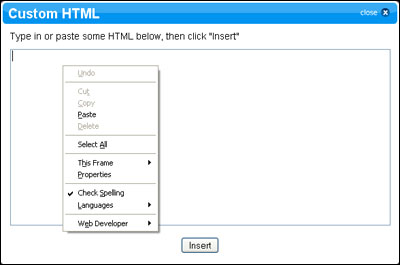
d. Paste the form HTML into the Custom HTML window (Edit > Paste, or CTRL+V, or Right Click and Select Paste).
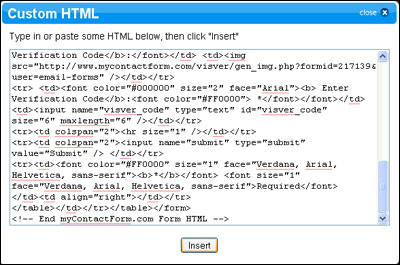
e. Click the Insert button.
6. Publish Your File
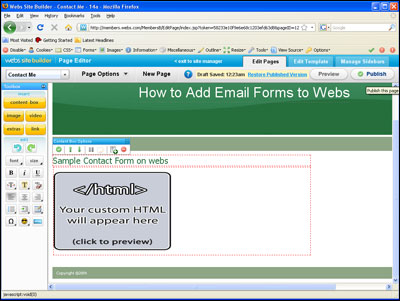
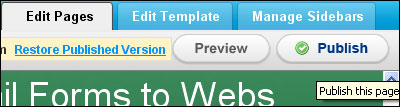
a. Click the Publish button.
7. Test Your Final, Live Email Form
Lastly, open a web browser and pull up the live form. Enter all of the form field details and press the submit button. Check your email and verify that all of the form details we submitted correctly.
We've created a sample form hosted on Webs.com which can be seen here.
Common Problems Encountered by Users:
I get the following error message:
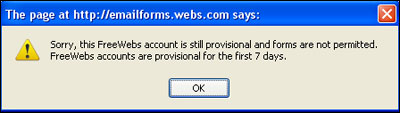
Webs.com does not allow new accounts to use email forms. This error will resolve itself once your account is older than 7 days.